

GIF maker

Turn up to 100 images into one GIF with the timing, shape and loop you choose.

Drop images here

JPG, PNG, WebP, AVIF, BMP, GIF (first frame), HEIC (Safari)

2–100 images · up to 100 MB in total · up to 50 megapixels each

This browser can't run the tool

Use the desktop app

Frame order

    Small images stay at their original size.

    Runs on your device. Keep this tab open.

    Making your GIF… 0%

    Your file is ready

    Opens in a new tab and saves your file.

    • No upload
    • No sign-up
    • No watermark

    Trusted by 400,000+ creators

    How it works

    How to make a GIF from images

    1. 01

      Choose your images

      Add 2 to 100 pictures or try the three sample photos.

    2. 02

      Arrange your frames

      Set the order, time per image, width, shape, background and loop. Check the dimensions and length below the settings.

    3. 03

      Make and download your GIF

      Select Make GIF, preview the animation, and download it.

    Why ChatCut

    What you can set in the GIF maker

    • Get the frame order right

      Drag images into place or move them with the arrows. Add or remove images while you work.

    • Set the pace and the loop

      Give each frame 0.1 to 10 seconds. Play your GIF once, three times, or on repeat.

    • Pick a canvas that fits

      Match your first image or choose square, portrait or wide. Fit the whole image or crop it to fill the frame.

    • Leave space transparent

      Use a transparent, white or black background around photos of different shapes.

    • Keep your images on your device

      Your browser reads each source and makes the GIF in this tab. Download it without signing up or adding a watermark.

    Learn

    Choose the right timing and size

    GIF timing and file size
    SettingResult
    3 frames × 0.5 s1.5 s per play
    10 frames × 0.2 s2 s per play
    100 frames × 0.5 s50 s per play
    320 px wide × 3 sample photosAbout 88 kB
    480 px wide × 3 sample photosAbout 164 kB
    GIF size limit on X15 MB on the web, 5 MB in the mobile apps (X Help Center)

    Choose how images fit

    Whole image keeps small pictures at their original size and fills any empty space with your background. Fill and crop can enlarge an image to cover the frame. Very tall first images can reduce the output width to keep the height within 1,422 px.
    Keep the file small

    Choose a smaller width or remove frames to reduce file size. Your result will vary with the detail and colors in each frame. You can also run the finished file through the GIF compressor.

    Use cases

    When to make an animated GIF

    • Loop a burst of photos

      Put successive shots of a gesture or expression in order and set the loop to Forever.

    • Show a product from a few angles

      Use a square frame for product shots. Set a longer hold so people have time to look at each angle.

    • Walk someone through a task

      Arrange screenshots in step order and give each frame enough time to read the labels.

    Keep editing

    Use your GIF in a video

    Bring your GIF into the ChatCut video editor to overlay it on footage, add a title, or set it to music. To make a GIF from footage, see how to make a GIF from a video.

    New on YouTube Seedream 5.5 Is Now in ChatCut Seedream 5.5 in ChatCut
    More from our channel All videos

    Skills

    Hundreds of skills for any video

    100+ Skills. No experience needed. Start in one click.

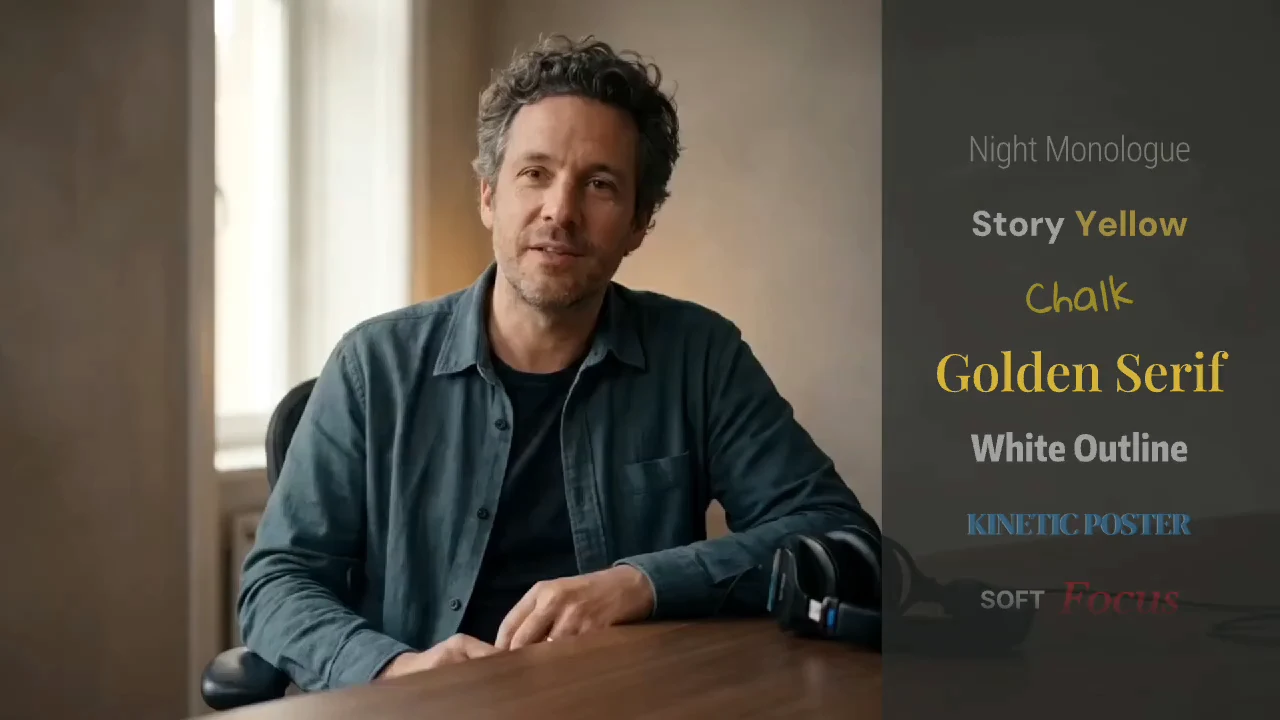
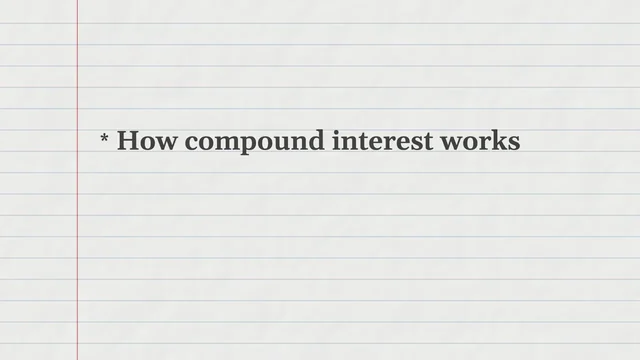
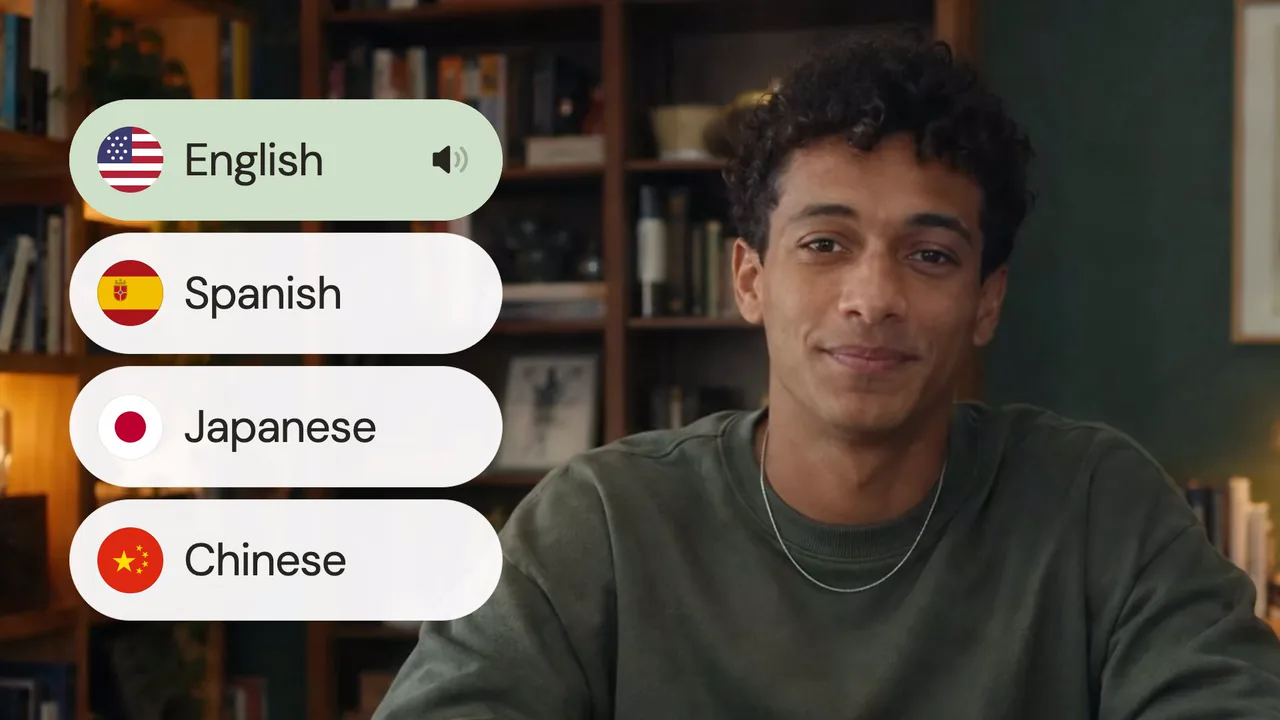
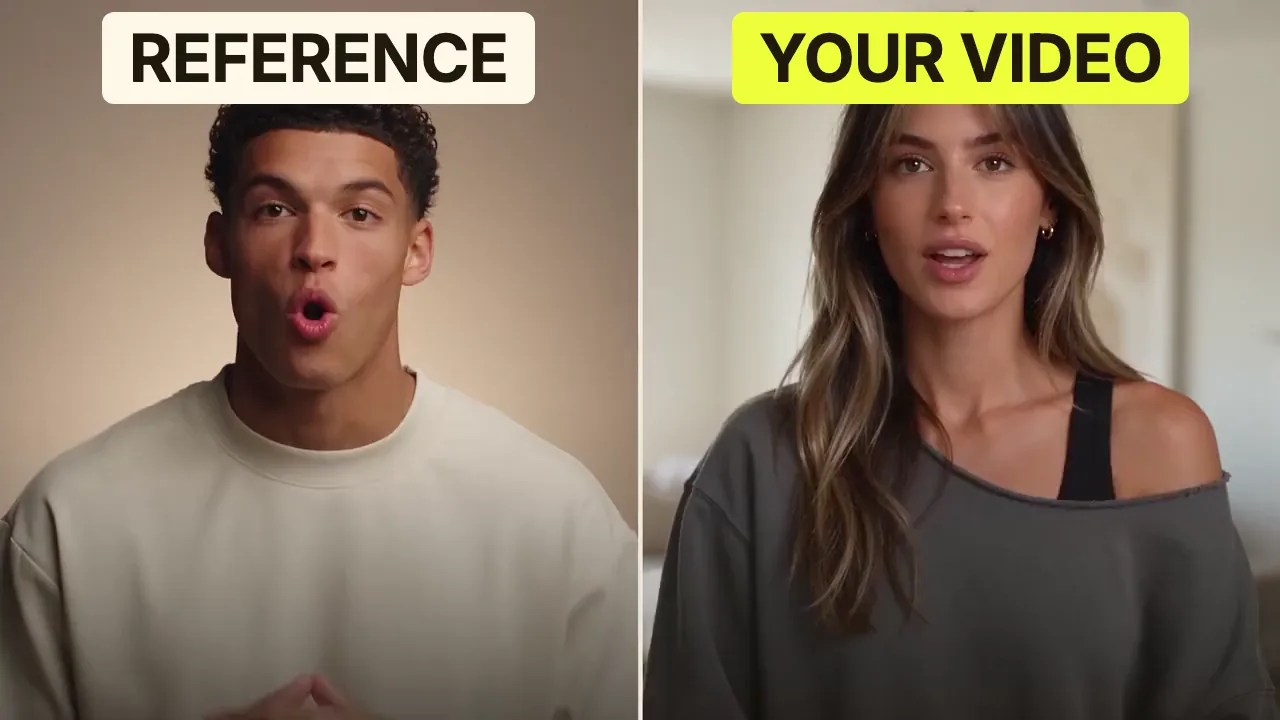
    Speech CleanupUpload your talking-head footage. ChatCut automatically cuts out verbal slips, repetition and awkward pauses, keeping your delivery natural and seamless.Long video to shortsPaste a video link or upload a file. ChatCut plans the edits and polishes each clip, turning your long video into multiple short videos ready to publish on their own.Add captionsUpload your talking-head video. ChatCut automatically recognizes the speech, generates captions and applies your selected caption style.Motion Graphics StylesUpload a talking-head video and get motion graphics in the Editorial Explainer style added automatically: notebook chapter pages, grey-paper data charts and yellow highlighter marks, alternating with your on-camera shots like a news explainer. Good for news explainers, current affairs and data stories. If the footage has obvious flubs, repeats or long pauses, it cleans them up first, then packages it. You get a packaged, editable timeline ready to tweak and export. Works best with clear audio and one presenter.Editorial ExplainerVideo TranslationUpload a video and choose a target language. ChatCut automatically translates and dubs the speech, syncs lip movements, preserves the original voice and adds captions as needed.Talking-Head Edit RecreationEdit your talking-head footage with the cuts and styling of a reference video. Share a talking-head video you like (upload it or paste a link), then add your own recording. AI breaks down the reference's pacing, captions and on-screen text, motion graphics, B-roll, framing and sound, and applies them to what you say. You get a finished video and an editable project. It uses your own footage throughout, with no face swaps or generated shots.

    FAQ

    GIF maker FAQ

    How many photos can I turn into a GIF?

    Choose 2 to 100 images up to 100 MB in total and 50 megapixels each. You get one frame per image.

    Do my images get uploaded?

    No. The GIF maker reads your files and encodes your GIF in your browser.

    Can I make a GIF on my phone or in Safari?

    Yes. Use a recent version of Chrome or Safari. Safari 17 and later can open HEIC photos on supported Apple devices. If a large job fails on your phone, try fewer images or a smaller width.

    Which image formats can I use?

    Use JPG, PNG, WebP, AVIF, BMP or a GIF's first frame. For HEIC use Safari, or save your photos as JPG. For video files, use Video to GIF.

    What if one of my pictures won't open?

    Remove the named image and open the original on your device. Save it as JPG or PNG, resize it if it exceeds the pixel limit, and add it again.

    Is the GIF maker free?

    Yes. Make and download your GIF free, without a sign-up or watermark.

    Can I make the GIF play only once?

    Yes. Choose Play once in Loop. You can also choose Play 3 times or Forever. The Length shown in the result is one play-through.

    Can I keep the full animation of a GIF I add?

    The GIF maker uses the first frame of each GIF file. Use GIF merger to combine existing animations and keep their frames.